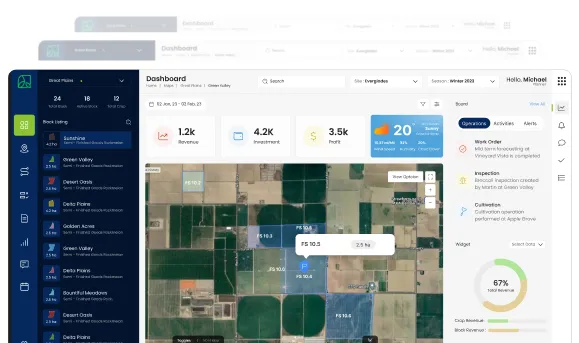
Data Analytics Solution of the Year” 2026 in Agtech Breakthrough Awards 2026


If the dashboard is where office users go to see, Planning & Control is where they go to act. Creating a work order. Scheduling it across a crew. Adjusting plans when conditions change. Approving exceptions. Reviewing what is happening across the operation right now. Stopping work that needs to stop. Releasing work that needs to start. This is the screen environment where the people running the operation run the operation.
This document describes how Planning & Control works on the AgriERP web app: the work-order management workspaces, the operational control views, and the planning capabilities that turn intent into scheduled, assigned, and tracked work.
1. The work-order workspace
How work orders get created
- From a crop plan: the most common origin. The agronomic protocol for each block (spray, fertilize, prune, scout) generates scheduled work orders at the right times in the season.
- From a production order: production orders for packing, processing, or treatment generate the underlying work orders for the labor and equipment involved.
- From a maintenance plan: preventive and condition-based maintenance plans generate maintenance work orders as their triggers fire.
- Ad-hoc creation: where something needs doing that the system has not scheduled, planners create ad-hoc work orders directly. A scouting ticket needing follow-up, an unexpected need, a one-off task.
- From scouting and exceptions: scouting observations and field-reported issues that need response are converted into work orders directly from the source record, with the context carried forward.
- Bulk creation: where many similar work orders need creation at once (an entire week’s spray program across many blocks), bulk creation tools generate them from templates.
The work-order detail screen
| Capability | What it means in practice |
|---|---|
| Header information | Work-order number, type, status, priority, scheduled timing, owner. The top-line context. |
| Operational context | The farm, block, crop, variety, season, and any parent record (production order, maintenance plan, scouting ticket) the work order is linked to. |
| Assignment | The crew, supervisor, equipment, and individuals assigned. Editable until the work starts; with audit trail after. |
| Activity details | What is to be done: the activity, the protocol where applicable, the expected duration, the inputs and equipment expected. |
| Inputs and consumption plan | Chemicals, fertilizers, packaging, and other inputs the work order will consume, with planned quantities. |
| Execution data | What has been captured so far from the field: time tracked, materials consumed, output produced, photos, observations. Updated in real time. |
| Notes and history | Free-text notes, attached documents, the audit trail of every change to the work order. |
2. Scheduling and assignment
The schedule view
Schedulers spend most of their work-day in the schedule view: a calendar or gantt-style layout showing work orders against time, with resource rows for crews, supervisors, equipment, or blocks. The same data, viewed in different ways depending on what the planner needs to see.
Views the planner switches between
| Capability | What it means in practice |
|---|---|
| Crew view | Crews along one axis, time along the other. What is each crew doing today, this week. Shows over-assignments and under-utilisation. |
| Equipment view | Equipment along one axis, time along the other. Tractor and sprayer assignments visible against the week. Easy to spot conflicts. |
| Block view | Blocks along one axis, time along the other. The week’s work in each block. Useful for sequencing related activities (spray followed by inspection, harvest followed by clean-up). |
| Activity view | Activities along one axis (all spray work, all harvest, all maintenance), time along the other. Useful for the activity-specialist supervisor managing their domain. |
| Map view | Work plotted on the map, with time as a filter. Where is work happening today; where is it happening tomorrow. |
| List view | Conventional list of work orders with sort, filter, and group. Useful when working a queue rather than scheduling visually. |
Assignment mechanics
- Drag-and-drop: in the schedule view, work orders can be dragged to different crews, equipment, or times. The change is captured immediately; affected people are notified.
- Bulk reassignment: where many work orders need to move at once (a crew off-sick, weather pushing a day’s work), bulk tools handle the change without one-at-a-time editing.
- Conflict detection: the system flags assignments that conflict: a worker already clocked into other work, equipment already scheduled, a crew over-capacity. Planners see conflicts as they assign.
- Capacity visibility: each resource row shows how full it is. The planner sees at a glance which crews and equipment have capacity for additional work and which are at the limit.
- Skills and certifications: assignments are checked against required skills and certifications. A spray work order cannot be assigned to a worker without the spray license; the system blocks the conflict and surfaces why.
- Weather and conditions: where work order types are weather-dependent, the schedule view overlays weather forecasts so planners can adjust around forecasted conditions.
3. Operational control
The operational control screen
Operations managers spend much of their day in the operational control screen: a live view of every active work order, with progress, exceptions, and the relationship between work happening on different blocks all visible at the same time.
What operational control shows
| Capability | What it means in practice |
|---|---|
| All active work orders | Every work order currently In Progress, with the crew, the block, and the elapsed time. Sorted by priority, by farm, by block, or by exception state. |
| Crews clocked in | Who is on the clock right now, where, and on which work order. The live workforce view. |
| Equipment in use | What equipment is operating, where, and against which work order. Telematics or GPS data feeds when available. |
| Today’s plan vs. progress | The day’s planned work alongside what has actually been done. The shortfall view is the start of the afternoon’s intervention discussion. |
| Exceptions in real time | Work orders behind schedule, output below plan, consumption above plan, quality issues raised. Each surfaces as it happens, not at end of day. |
| Weather and condition feeds | Current and forecast weather, with operational implications flagged: “Wind rising in northern blocks; spray work should pause within the hour.” |
Controls the supervisor exercises
- Hold and resume: operations managers can hold individual work orders or groups of work orders. Field workers see the hold and stop. When conditions change, work orders resume with one action.
- Reprioritise: where new information makes a different priority right (a buyer changes their delivery schedule, a quality issue elevates inspection work), priorities can be changed live.
- Reassign mid-flow: where a crew becomes unavailable or a piece of equipment breaks down, the affected work is reassigned to alternate resources, with notifications flowing immediately.
- Cancel and replan: work that cannot be completed gets cancelled with reason; replacement work orders are created where the work still needs to happen.
- Escalate: issues beyond the supervisor’s authority (large variance, safety event, contract impact) escalate to the right manager with full context.
- Authorise overtime and exceptions: where crews need to work beyond normal hours, where unusual inputs are needed, where standard protocols need overriding, the authorisation is captured against the work order with reason.
Multi-farm and program control
- Filter by farm: for multi-farm operations, the control screen filters down to any one farm or shows the cross-farm view. Managers responsible for multiple farms see them side by side.
- Filter by program: where the business runs distinct programs (crops, certification schemes, customer-specific programs), the view filters to each program.
- Cross-farm balancing: where one farm is over-capacity and another has spare resources, work or resources can be balanced across. The system supports the planning conversation with the underlying data.
- Region and territory rollups: for very large operations, region and territory rollups give regional managers their own oversight scope, with drill-down into specific farms.
4. Approvals and workflows
Where approvals happen on the web app
- Approval inbox: every user with approval responsibilities has an approval inbox: a list of items waiting for their decision, with the full context attached. Approvers triage their queue here.
- In-record approvals: approvers can also act from the record itself: open a purchase order, review it, approve or decline without leaving the page.
- Inline dashboard approvals: the dashboard widget for the approval queue allows approve and decline directly, where the decision is simple. Complex decisions open the full record.
- Delegations and absences: where an approver is unavailable (leave, sickness, travel), they can delegate their approval authority to a nominated person, with the delegation captured.
Approval categories
| Capability | What it means in practice |
|---|---|
| Purchase order approvals | Approve POs against vendors, with the three-way-match data and historical performance visible. Limits by value, by category, by approver level. |
| Contract approvals | Grower contracts, buyer contracts, supply contracts. Reviewed by commercial, finance, and legal as configured. |
| Exception approvals | Overtime authorisations, protocol overrides, credit-limit exceptions, work-order priority changes. The exceptions to standard rules that need explicit sign-off. |
| Period-close approvals | The signoffs that confirm period-end has been reviewed and is ready to be locked: reconciliations completed, adjustments approved, statements finalised. |
| HR approvals | New hires, role changes, salary adjustments, leave requests. Routed per the HR policy. |
| Capital expenditure approvals | Asset acquisitions, infrastructure investments, major replacements. Often the most senior workflow, going to executive or board level. |
Workflow visibility
- Where is my request: users who submitted items for approval can see where their request currently sits in the workflow, who has it, and how long it has been there.
- Bottleneck reporting: the business can see where approval queues are backing up, by approver, by category. Useful for sizing approval authorities and adjusting routing.
- Audit and review: every approval decision is on the record: the approver, the time, the reasoning where captured. External auditors and internal reviewers can trace any decision.
- Compliance reporting: where approval workflows enforce compliance (segregation of duties, value thresholds, certified roles), the system produces the compliance reports automatically.
Why office and field are one systemIn many agribusinesses, the office systems and the field systems are different worlds. The office runs spreadsheets and accounting software. The field runs on memory, paper, and the supervisor’s experience. The two come together in a Monday-morning meeting where the office tries to figure out what the field did and the field tries to figure out what the office wants.Planning & Control on the web app, paired with Work Execution and Time Tracking on the mobile app, eliminates that gap. Work created on the web app appears on the field worker’s device in real time. Work captured on the device appears in the office immediately. Planners see what is actually happening; workers see what is actually planned. The two worlds become one.
In summary
Planning & Control on the AgriERP web app is where the people running the operation actually run it. The work-order workspace is where work is created, detailed, and managed. The scheduling and assignment views match work to crews, equipment, and time, with conflict detection and capacity visibility built in. The operational control screen gives live oversight of everything happening across the operation, with the controls to intervene when reality diverges from the plan. Approvals and workflows make sure the decisions that need review get the right review, with full audit trail.
Combined with the dashboards covered in the previous document, Planning & Control completes the office-side experience of AgriERP, the environment where the operation is managed end to end, in real time, with both the visibility and the control to actually run a modern agribusiness.