The ERP Solution for the Year” 2025 in Agtech Breakthrough Awards 2025

AgriERP App Suite — Step 5: Process

Processing jobs tracked from tank to output bin.

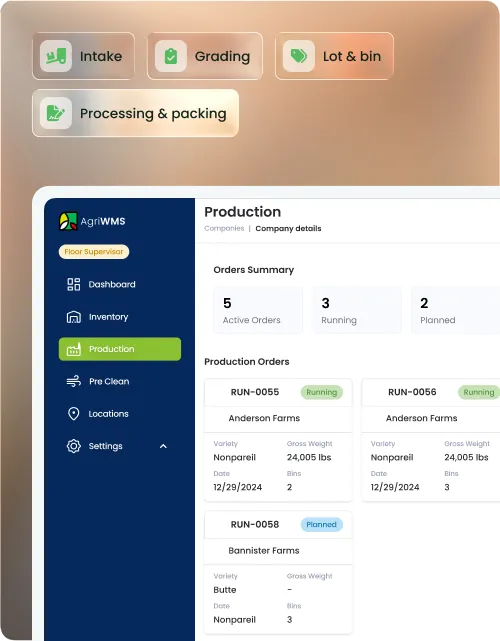
The Production App manages every processing stage — pre-cleaning, production runs, treatment, and pasteurization — across a floor-facing kiosk interface and a planning web interface, all connected to a single record on Microsoft Dynamics 365.

Kiosk and web interfaces
Microsoft Dynamics 365
Scale-integrated weighing
Lab test generation

Built on

Trusted by growers and processors

The problem with most processing tools

The floor runs on paper. The office runs on guesswork.

Most processing operations track jobs on whiteboards and paper run sheets that never connect to inventory or finance. By the time a job is entered into the system, the data is already a day old and the lot history is incomplete.
No real-time view of what is running

Production managers have no live picture of active jobs, weights, or turnout ratios. Problems surface at end-of-shift, not while there is still time to act.

Output bins not connected to the lot

Output bins are labelled and moved without being tied to the field ticket or tank they came from. Traceability breaks the moment product leaves the processing floor.

Weights re-entered after the job

Scale readings are noted on paper and keyed into the system after the fact. Manual re-entry introduces errors and creates a gap between what the floor weighed and what finance sees.

Full feature set

Two interfaces. One production record.

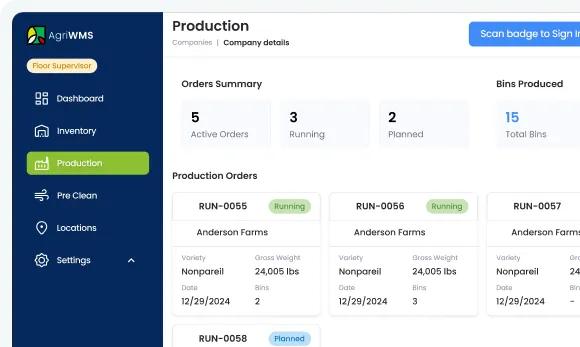
The Production App runs as a floor-facing kiosk for operators and a web interface for planners and supervisors. Both write to the same job record in Microsoft Dynamics 365 in real time.

Kiosk

Floor-facing interface

Designed for operators on the processing floor. Large-touch inputs, barcode scanning, scale integration, and job start / stop controls — purpose-built for a working production environment.

Web

Planning and oversight interface

For production managers, supervisors, and planners. Job creation and scheduling, turnout reporting, process order validation, lab test generation, and full output management.

Kiosk
Web

Pre-Cleaning Job Creation

Create pre-cleaning jobs on the kiosk floor or plan them in advance from the web interface. Web planning supports scheduling and batch order visibility before the job starts on the floor.

Kiosk

Tank Selection and Field Ticket Scanning

Assign a tank to the pre-cleaning job and scan field tickets directly from the kiosk. Multi-ticket selection is supported when all tickets share the same GFV constraint — enforced automatically to prevent mismatches.

Kiosk

Operator and Equipment Assignment

Assign operators and equipment to a pre-cleaning job at start. Inputs are recorded against the job so production reports show who ran which job and with which equipment.

Kiosk

Job Start and Stop

Start and stop pre-cleaning jobs directly from the kiosk. Start timestamps and stop timestamps are recorded automatically so duration is calculated without manual input.

Kiosk
Web

Tank Ticket Print and Reprint

Print tank tickets from the kiosk at the end of pre-cleaning and reprint from either the kiosk or the web interface if a replacement is needed. Tank ticket data pulls from the job record automatically.

Web

View Pre-Cleaning Batch Orders

View all pre-cleaning batch orders from the web interface. See status, field tickets assigned, GFV groupings, and tank allocations across all active and completed pre-cleaning runs.
Kiosk
Web

Pre-Cleaning Job Creation

Create pre-cleaning jobs on the kiosk floor or plan them in advance from the web interface. Web planning supports scheduling and batch order visibility before the job starts on the floor.

Kiosk

Tank Selection and Field Ticket Scanning

Assign a tank to the pre-cleaning job and scan field tickets directly from the kiosk. Multi-ticket selection is supported when all tickets share the same GFV constraint — enforced automatically to prevent mismatches.

Kiosk

Operator and Equipment Assignment

Assign operators and equipment to a pre-cleaning job at start. Inputs are recorded against the job so production reports show who ran which job and with which equipment.

Kiosk

Job Start and Stop

Start and stop pre-cleaning jobs directly from the kiosk. Start timestamps and stop timestamps are recorded automatically so duration is calculated without manual input.

Kiosk
Web

Tank Ticket Print and Reprint

Print tank tickets from the kiosk at the end of pre-cleaning and reprint from either the kiosk or the web interface if a replacement is needed. Tank ticket data pulls from the job record automatically.

Web

View Pre-Cleaning Batch Orders

View all pre-cleaning batch orders from the web interface. See status, field tickets assigned, GFV groupings, and tank allocations across all active and completed pre-cleaning runs.

Kiosk
Web

Pre-Cleaning Job Creation

Create pre-cleaning jobs on the kiosk floor or plan them in advance from the web interface. Web planning supports scheduling and batch order visibility before the job starts on the floor.

Kiosk

Tank Selection and Field Ticket Scanning

Assign a tank to the pre-cleaning job and scan field tickets directly from the kiosk. Multi-ticket selection is supported when all tickets share the same GFV constraint — enforced automatically to prevent mismatches.

Kiosk

Operator and Equipment Assignment

Assign operators and equipment to a pre-cleaning job at start. Inputs are recorded against the job so production reports show who ran which job and with which equipment.

Kiosk

Job Start and Stop

Start and stop pre-cleaning jobs directly from the kiosk. Start timestamps and stop timestamps are recorded automatically so duration is calculated without manual input.

Kiosk
Web

Tank Ticket Print and Reprint

Print tank tickets from the kiosk at the end of pre-cleaning and reprint from either the kiosk or the web interface if a replacement is needed. Tank ticket data pulls from the job record automatically.

Web

View Pre-Cleaning Batch Orders

View all pre-cleaning batch orders from the web interface. See status, field tickets assigned, GFV groupings, and tank allocations across all active and completed pre-cleaning runs.
Kiosk
Web

Pre-Cleaning Job Creation

Create pre-cleaning jobs on the kiosk floor or plan them in advance from the web interface. Web planning supports scheduling and batch order visibility before the job starts on the floor.

Kiosk

Tank Selection and Field Ticket Scanning

Assign a tank to the pre-cleaning job and scan field tickets directly from the kiosk. Multi-ticket selection is supported when all tickets share the same GFV constraint — enforced automatically to prevent mismatches.

Kiosk

Operator and Equipment Assignment

Assign operators and equipment to a pre-cleaning job at start. Inputs are recorded against the job so production reports show who ran which job and with which equipment.

Kiosk

Job Start and Stop

Start and stop pre-cleaning jobs directly from the kiosk. Start timestamps and stop timestamps are recorded automatically so duration is calculated without manual input.

Kiosk
Web

Tank Ticket Print and Reprint

Print tank tickets from the kiosk at the end of pre-cleaning and reprint from either the kiosk or the web interface if a replacement is needed. Tank ticket data pulls from the job record automatically.

Web

View Pre-Cleaning Batch Orders

View all pre-cleaning batch orders from the web interface. See status, field tickets assigned, GFV groupings, and tank allocations across all active and completed pre-cleaning runs.

Kiosk
Web

Pre-Cleaning Job Creation

Create pre-cleaning jobs on the kiosk floor or plan them in advance from the web interface. Web planning supports scheduling and batch order visibility before the job starts on the floor.

Kiosk

Tank Selection and Field Ticket Scanning

Assign a tank to the pre-cleaning job and scan field tickets directly from the kiosk. Multi-ticket selection is supported when all tickets share the same GFV constraint — enforced automatically to prevent mismatches.

Kiosk

Operator and Equipment Assignment

Assign operators and equipment to a pre-cleaning job at start. Inputs are recorded against the job so production reports show who ran which job and with which equipment.

Kiosk

Job Start and Stop

Start and stop pre-cleaning jobs directly from the kiosk. Start timestamps and stop timestamps are recorded automatically so duration is calculated without manual input.

Kiosk
Web

Tank Ticket Print and Reprint

Print tank tickets from the kiosk at the end of pre-cleaning and reprint from either the kiosk or the web interface if a replacement is needed. Tank ticket data pulls from the job record automatically.

Web

View Pre-Cleaning Batch Orders

View all pre-cleaning batch orders from the web interface. See status, field tickets assigned, GFV groupings, and tank allocations across all active and completed pre-cleaning runs.

Partners & Affiliations

Connected to the whole suite

Every job updates inventory, quality, and finance at the same time.

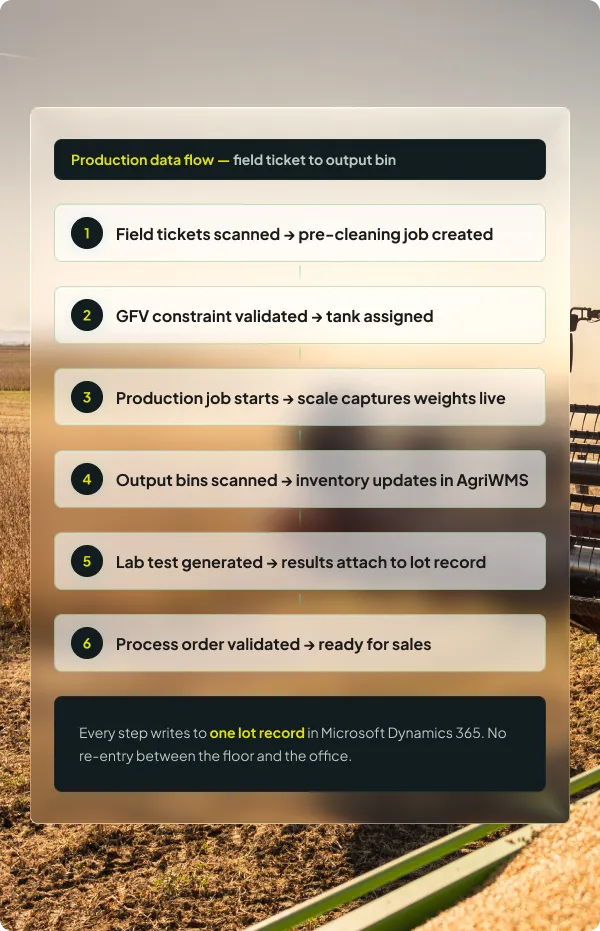
The Production App runs on Microsoft Dynamics 365. When a job completes, output bins post to AgriWMS inventory, the lot record updates, and process order details are available to quality and sales — all in real time, with no second entry.

Output bins in AgriWMS the moment they are scanned

Bin scans on the kiosk write to the AgriWMS inventory record immediately. No batch upload, no end-of-shift entry.

Lab results on the lot record, not in a separate system

Lab test generation and result recording happen inside the Production App and attach directly to the process order and lot in Dynamics 365.

Enterprise security on Microsoft Azure

Production data, weight records, and process orders sit on Microsoft's cloud infrastructure with role-based access and full audit trails.

The AgriERP App Suite

Production App is one part of a connected field-to-sale system.

Every app in the suite shares the same data record. What comes into the Production App from receiving and quality flows directly out to sales and finance — because they all run on the same platform.

GROW

Growers Portal

OPERATE

Farm App

STORE

AgriWMS App

CHECK

Quality App

PROCESS

Production App

SELL

Sales App

See your processing floor connected to your office.

Book a walkthrough and we will map your pre-cleaning, production, and treatment workflow to the AgriERP Production App — on Microsoft Dynamics 365.

Common questions

Before you book the demo

The questions QC managers and operations leads ask before committing to a walkthrough — answered directly.

What is the difference between the kiosk and web interfaces?

The kiosk interface is purpose-built for operators on the processing floor. It uses large-touch inputs, barcode scanning, and scale integration — the controls operators need to start and stop jobs, scan bins, and capture weights without navigating a full software interface. The web interface is for production managers, supervisors, and planners: job creation, scheduling, turnout reporting, process order validation, lab test management, and output oversight. Both write to the same job record in real time.

GFV stands for Grower Field Variety. When multiple field tickets are selected for the same pre-cleaning job, the system enforces that all tickets share the same GFV — preventing product from different growers, fields, or varieties from being blended unintentionally. If a ticket does not match the GFV of the job, the kiosk rejects it and the operator is prompted to correct the selection.

The kiosk connects to compatible weighing scales and captures output bin weights automatically as bins are processed. The weight posts directly to the production job record without manual entry. Where a correction is needed — a scale discrepancy or a re-weigh — an authorized operator can enter a manual weight adjustment, which is logged separately from the original scale reading.

When a production job ends with partially filled bins, the Transfer Incomplete Bins feature moves those bins to the next job without creating new output records. The bin carries its current weight and lot association forward. When the next job adds product to the same bin, the weight is updated in place — so the final bin record reflects total weight from both jobs against the correct lot history.

From the web interface, a supervisor or quality lead can generate a lab test request directly from a process order. This creates a lab sample record tied to the order and marks it as awaiting results. The sample can be sent to an internal or external lab. When results come back, they are entered against the lab record and automatically attach to the process order and the lot in Microsoft Dynamics 365 — no re-entry in the Quality App required.

Yes. Individual output bins and trailers can be voided from the web interface output bins grid. The void is recorded in the job history with a timestamp and reason — the original record is preserved, not deleted. Voided bins are removed from inventory in AgriWMS immediately so counts stay accurate.